Function
Configuration Wizard allows you to create a switch profile and NIC profile, associate a profile with a compute node, and apply the switch profile.
 NOTE:
NOTE: - Parameter settings of different types of switch modules vary according to options displayed on the WebUI.
- The maximum number of switch profiles is 32.
- The maximum number of NIC profiles is 128.
Procedure
- Create a switch profile.
- Enter the profile information. Table 1 describes the parameters.
Table 1 Parameter description Parameter
Description
Profile Name
Identifies a profile, consists of letters, digits, and underscores (_). It cannot start with an underscore or exceed 20 characters.
Switch Slot
Specifies the slot numbers of the switch modules.
Value:
- 2X/3X
- 1E/4E
Switch Type
Specifies the switch module type in the profile.
The supported switch modules include CX110, CX111, CX210, CX220, CX310, CX311, CX312, CX320, CX710, CX910, CX911, CX912, CX915, CX916, CX916L and CX920.
The switch configuration function is implemented in V2.14 or later, and the released version on the xFusion technical support website is V100R001C10SPC110 or later.
Work Mode
- Tradition (EndHost): indicates the switch mode of switch modules. The switch module version should be VRP V8.
- Smart Channel (EndHost): indicates the channel mode of switch modules. This mode can automatically resolve loop problems on the network. The switch module version must support this mode. The version that supports the smart channel mode also supports the tradition mode.
The default value is Tradition (EndHost).
NOTE:- If the switch module version does not match after the switch profile is associated with a switch slot, an alarm will be generated.
- CX320, CX916 and CX916L support only the Tradition work mode.
Work Relation
Specifies the work relationship between a pair of switch modules in slots 2X/3X or 1E/4E.
Value:
- Stack: The switch modules are stacked and present as one switch for management.
- Twin: The switch modules are mutually backed up for each other on the dual-plane, that is, the service configuration of the two switches are the same.
Notes
Provides additional information. This parameter is optional but cannot contain any Chinese characters. The value can contain a maximum of 47 characters.
The configuration promoted in the New Switch Profile wizard varies depending on the switch module types. Perform the configuration based on actual requirements.
- CX110, CX111, CX310, CX311, CX312, CX320, CX710, CX910, CX911, CX912, CX915,CX916, CX916L and CX920 support Switch Configuration, Uplink Configuration, and Business VLAN Configuration.
NOTE: The CX916L can only be installed in slot 2X or 3X.
- CX210, CX220, CX311, CX320, CX911, CX912,CX916 and CX915 support FC Configuration and FC SAN Configuration.
NOTE: If both switch modules in slots indicated in the new switch profile are CX111 or CX915 and work in Stack mode, connect the 10GE ports numbered 3 on the switch module panels with an optic cable and those numbered 4 with an optic cable.
- Click Next.
In the Switch Configuration area, Table 2 describes the parameters.
NOTE: - If Work Relation is set to Stack, you can set the parameters only in slot 2X or 1E, and slot 3X or 4E automatically synchronizes their parameters.
- If Work Relation is set to Twin, you can set the parameter in any slot.
Table 2 Parameter description Parameter
Description
Switch Slot
Determines the position for installing the switch module in the rear of the E9000 chassis.
Switch System Management Interface IP Address
Sets an IP address of a management network port on a switch module by clicking Edit.
Subnet Mask
Sets a subnet mask of a management network port on a switch module by clicking Edit.
Default Gateway
Sets a default gateway of a management network port on a switch module by clicking Edit.
Management Mode
Specifies a connection mode through which a user connects to a switch module.
User Name
Specifies a user name that is entered for authentication when a user logs in to a switch module.
Operation
Allows users to perform operations on a profile.
 Change Serial Port Password
- Specifies the serial port password of the switch module. The old password will be replaced by the new one.
- The value contains 8 to 16 characters.
- The password should consist of upper-case and lower-case letters, digits, and special characters, excluding question marks (?) and spaces.
- Confirm COM Password
Same as the value of COM Password.
- Change Administrator Account
- Specifies the administrator of a switch module. The following formats are supported:
- Pure user name
- The value contains 6 to 32 characters.
- The value cannot contain the space and the following special characters:
/ \ : * ? " < > | @ ' %
- User name+domain name delimiter+domain name
- The value contains 6 to 32 characters.
- The user name and domain name cannot contain spaces and the following special characters:
/ \ : * ? " < > | @ ' %
.
- The domain name delimiter is @.
For example, admin@test.com.
NOTE:The administrator name is case insensitive.
- Specifies the password of the administrator.
- The value contains 8 to 32 characters.
- The value cannot be the same as the user name or the user name in reverse order, and must contain uppercase letters, lowercase letters, digits, and special characters except question marks (?) and spaces.
- Confirm Administrator Password
Same as Administrator Password.
- Change User Root Password
- Specifies the password of the root user for the switch module. The old password will be replaced by the new one.
- The value contains 8 to 32 characters.
- The value cannot be the same as the user name or the user name in reverse order, and must contain uppercase letters, lowercase letters, digits, and special characters except question marks (?) and spaces.
- Confirm User root Password
Same as the value of User root Password.
NOTE:- To obtain the default serial port password,contact technical support. To ensure account security, change the password periodically.
- To obtain the default password of the root user, contact technical support. To ensure account security, change the password periodically.
- (Optional) In the Fault Detection Configuration area, the parameter description is as follows:
- On: enables the fault detection function. After receiving a smart channel uplink fault message, the switch module checks the VLAN of the smart channel uplink and set the status of all the VLAN ports that connect to compute nodes to error-down. If the smart channel uplink recovers, the error-down ports recover as well.
- Off: disables the fault detection function.
- Click Next.
- In the Splitting 40GE Panel Ports area, select 40GE panel ports to be split. NOTE:
- This area is available only for the CX320, CX710, CX916, CX916L and CX920. Each of the selected 40GE ports will be split into four 10GE ports.
- After splitting or canceling splitting, the configuration of the ports will be lost. Please exercise caution.
- Click and configure the SNMP for the Ethernet or FC plane based on the actual requirement. Table 3 describes the parameters.
Table 3 Parameter description Parameter
Description
SNMP
Indicates whether SNMP is enabled. SNMP is disabled by default.
SNMP read
The default value is Enable. If the SNMP version is v1 and v2c, SNMP read can be enabled. If the SNMP version is v3, SNMP read cannot be enabled.
SNMP version
The message version must be supported by the upper-layer NMS. The SNMP trap message version that the MM910 sends to the upper-layer NMS is one of the following:
- v1
- v2c
- v3
The default value is v3. If the SNMP version is v1 and v2c, you need to configure the community name. If the SNMP version is v3, you need to configure the user name, authentication protocol, and privacy protocol.
User name or Community name
The user name or community name must meet the following requirements:
- Contains 8 to 32 characters.
- Contains at least two of the following character types: lower case letters, upper case letters, digits, and special characters (excluding ?, #, ,, ., ;, and space) and does not start with a special character.
Authentication protocol
The value is SHA or MD5. SHA is used by default.
NOTE:MD5 is insecure. SHA is recommended.
Authentication password
The password must meet the following complexity requirements:
- Contains 8 to 32 characters. For the FC plane of the CX912, CX210, or CX220, the password cannot exceed 19 characters.
- Contains at least two of the following character types: lower case letters, upper case letters, digits, and special characters (excluding ? and space).
- Excludes the user name or the user name in reverse order.
Privacy protocol
- Ethernet plane: The value is DES56 or AES128. The default value is AES128.
- FC plane: The value is DES or AES128. The default value is AES128.
NOTE:DES is insecure. AES is recommended.
Confirm Password
The password must meet the following complexity requirements:
- Contains 8 to 32 characters. For the FC plane of the CX912, CX210, or CX220, the password cannot exceed 19 characters.
- Contains at least two of the following character types: lower case letters, upper case letters, digits, and special characters (excluding ? and space).
- Excludes the user name or the user name in reverse order.
Trap
Indicates whether traps are enabled. Traps are disabled by default.
Trap Type
Default value: Trap.
Trap port number
Indicates the number of the host port that receives trap information. The default value is 162. The trap port number ranges from 0 to 65535.
Trap address
Indicates the IP address of the host that receives trap information. The trap address range is from 1.0.0.0 to 126.255.255.255, or from 128.0.0.0 to 223.255.255.255.
- Click Next.
The New Uplink button is displayed.
- Click New Uplink
The New Uplink page is displayed. Table 4 describes the parameters.
NOTE: Modify Ports, Mode, Least Active Link Number, Max Active Link Number in the Eth Trunk Configuration area on the New Uplink page are automatically configured. You can change them if necessary.
Table 4 Parameter description Parameter
Description
Uplink Name
The uplink name is mandatory. It must be a string of up to 20 characters, including letters, digits, and underscores (_). It cannot start with an underscore.
Uplink Type
- Share Uplink: used by multiple Business VLANs whose VLAN Type is Normal Vlan or Trans Vlan at the same time.
- Normal Uplink: used by a Business VLAN whose VLAN Type is Normal Vlan or Domain Vlan.
- Cascade Uplink: used for cascading the switch modules of two or more chassis. It can be used only when the Work Relation of the switch module is set to Stack.
Interface Type
- Eth-Trunk: allows multiple physical links to be bound as a logical link to increase bandwidth, implement load sharing, and improve system reliability. This is also referred to as Ethernet link aggregation.
- Smart Link: allows two ports to work in active/standby mode. Normally, one port is active, and the other is blocked and in the inactive state. When the active port is unavailable, the other port is activated for data transfer.
- Physical Link: indicates a common physical link.
The default value is Eth-Trunk.
Negotiation
- If Negotiation is Enabled, the port auto-negotiation configuration retains the default setting.
- If Negotiation is Disabled, you need to configure the uplink speed value based on the port type.
NOTE:- If the speeds at the uplink port and the connected port are different, the two ports cannot communicate with each other. You are advised to set Negotiation to Enabled.
- The Negotiation configuration only applies to GE ports, but does not apply to 10GE and 40GE ports.
Notes
Provides additional information. This parameter is optional but cannot contain any Chinese characters. The value can contain a maximum of 47 characters.
Eth-Trunk Configuration
If Interface Type is set to Eth-Trunk, Eth-Trunk Configuration must be configured.
- Click Modify Ports. In Available Ports, double-click the port or select the port and click Add to add the port to the Selected Ports list.NOTE:
You must select at least two ports. If Work Relation is set to Stack, the selected ports must be on switch modules in different slots. Selected Ports show the recommended ports. You can change them based on needs. Table 2 describes the port formats.
- Sets the mode to Manual or LACP based on the actual situation.
- Manual: The Eth-Trunk links work in manual load balancing mode.
- LACP: The Eth-Trunk links work in LACP mode.
- LACP Timeout: specifies the maximum time allowed for receiving packets.
- Slow: The timeout period is 3 seconds.
- Fast: The timeout period is 90 seconds.
- Sets the number of active links.
- Minimum number of active links: specifies the minimum active links in a link aggregation group.
- Maximum number of active links: specifies the maximum active links in a link aggregation group, this parameter takes affect only when the mode is set to LACP.
Smart Link Configuration
If Interface Type is set to Smart Link, Smart Link Configuration must be configured.
- Click Modify Ports. In Available Master Ports, double-click the ports or select the ports and click Add to add the ports to the Selected Master Ports list.NOTE:
You must select at least one master port and one slave port. The number of selected master ports must be the same as the number of selected slave ports. If Work Relation is set to Stack, you are advised to select ports on switch modules in different slots. Table 2 describes the port formats.
- Create the Eth-Trunk interface.NOTE:
- If the number of the master or slave ports is more than one, the Eth-Trunk interface is created automatically.
- If the number of the master or slave ports is one, the Eth-Trunk interface is not created by default.
- Manual: The Eth-Trunk links work in manual load balancing mode.
- LACP: The Eth-Trunk links work in LACP mode.
- Least Active Link Number: specifies the minimum active links in a link aggregation group.
- Max Active Link Number: specifies the maximum active links in a link aggregation group, this parameter takes affect only when the mode is set to LACP.
- Set the Flush packet sending function.
- By default, this function is disabled.
- If Uplink Type is set to Normal Uplink, you do not need to set Flush Control VLAN ID.
- Flush Control VLAN ID: The value range is 2 to 4063.
- For the CX311:
- If Work Relation is set to Stack, the VLAN ID cannot be 1002 or 1003. VLANs 1002 and 1003 are used by FCoE data by default.
- If Work Relation is set to Twin, the VLAN ID cannot be 1002. VLAN 1002 is used by FCoE data by default.
Physical Link Configuration
If Interface Type is set to Physical Link, Physical Link Configuration must be configured.
Select physical ports in the list. Table 2 describes the port formats.
- Click Next.
The New Business VLAN Configuration button is displayed.
- Click New Business VLAN Configuration.
The New Business VLAN Configuration page is displayed. Table 5 describes the parameters.
NOTE: The maximum number of Business VLAN policies is 48.
Table 5 Parameter description Parameter
Description
VLAN Name
The VLAN name is mandatory. It must be a string of up to 47 characters, including letters, digits, hyphens (-), and underscores (_). It cannot start with an underscore.
VLAN Type
- Trans Vlan: indicates a transparent transmission VLAN that consists of one or more VLAN ranges. Packets in all VLAN ranges can be transparently transmitted to external switches through the Trans VLAN.
- Normal Vlan: indicates a normal VLAN with only one ID.
- Domain Vlan: easyLink enables switch modules to be divided into up to 16 domains. A domain supports transparent transmission of data packets carrying any VLAN tags. Data packets in different domains can have the same VLAN tags. Domain VLANs are unique IDs of domains. Domain VLAN IDs cannot be the same as any normal or Trans VLAN IDs.
The default value is Trans Vlan.
VLAN ID
- If VLAN Type is Trans Vlan, the value of VLAN ID is in a range.
- If VLAN Type is Normal Vlan, the value of VLAN ID is a fixed value.
- If VLAN Type is Domain Vlan, the value of VLAN ID is a fixed value.
Value range: 2 to 4063
If the switch module type is CX311, and Work Relation is Stack or Twin, the value of VLAN ID cannot be the same as the VLAN ID of the FC SAN FCoE.
Uplink Name
Specifies the created Uplink.
If VLAN Type is set to Normal Vlan, only uplinks with Uplink Type set to Share Uplink or Normal Uplink and [ NULL ] are displayed. If the value of Uplink Name is [ NULL ], the newly created Business VLAN is not associated with the existing uplinks with type of Share Uplink or Normal Uplink.
Uplink Type
Specifies the uplink type.
If the value of Uplink Name is [ NULL ], this parameter is not displayed.
Data Packets with VLAN Tag
Specifies whether data packets carry VLAN Tags.
This parameter is mandatory only if VLAN Type is set to Normal Vlan and Uplink Type is set to Normal Uplink.
Data packets do not carry VLAN Tags by default.
Include Management Interface
If this parameter is selected, the management plane is connected.
Select this parameter only when the slot is 2X or 3X and VLAN Type is Normal Vlan.
NOTE:This parameter is available only for the CX110, CX111, CX310, CX311, CX312, CX320, CX710, CX915, CX916 and CX916L.
Flush Control VLAN ID
The value is an integer ranging from 2 to 4063.
NOTE:This parameter is required only when Uplink Name is not Null, the selected uplink is a smart link, and sending flush packets is enabled for the uplink.
Modify Cascade Uplink
Associates the newly created VLAN with the Cascade Uplink.
You can use the default values.
Notes
Provides additional information. This parameter is optional but cannot contain any Chinese characters. The value can contain a maximum of 47 characters.
- Click Next.
The FC Configuration window is displayed. Table 6 describes the parameters.
Table 6 Parameter description Parameter
Description
Switch slot
Determines the position for installing the switch module in the rear of the E9000 chassis.
Management Network Port IP address
Sets an IP address of a management network port on an FC switch plane by clicking Edit.
Subnet Mask
Sets a subnet mask of a management network port on an FC switch plane by clicking Edit.
Default Gateway
Sets the default gateway of a management network port on an FC switch plane by clicking Edit.
User Name
Specifies a user name that is entered for authentication when a user logs in to an FC switch plane.
Login Password
Specifies a password that is entered for authentication when a user logs in to an FC switch plane. By default, Use factory password for login is selected. A user can log in to an FC switch plane using the default password.
To change a password, deselect Use factory password for login. In the displayed Change Password dialog box, enter a new password twice, and click OK.
The description for Login Password is as follows:
- When it is selected, you can use the login password preferentially. If the login fails, use the factory password to try again.
- When it is deselected, you can use only the login password to log in to an FC switch plane.
Operation
Allows users to perform operations on a profile. To change the login password, click
.- To obtain the default password for the FC switch plane,contact technical support. You are advised to change the default password for security purposes
- When a new password for logging in to the FC switch plane is set successfully, the old serial port password is replaced. The new password must contain
- 8 to 20 characters.
- Uppercase, lowercase, digits, and special characters excluding the question mark "?" and spaces.
- The password cannot be the same as a user name or the user name in reverse order.
- Select an FC work mode.
The FC working mode indicates the working relationship between the FC switch planes of a pair of switch modules (2X/3X or 1E/4E).The values of the FC work mode are as follows:
- NPV: indicates that the FC switch is in transparent transmission mode and connects to other switch using an NP_port.
- Switch: indicates that the FC switch is in FCF mode and can connect to storage devices.
When only the Switch mode is selected, an FC SAN can be configured.
- Click Next.
Go to the New FC SAN Configuration window.
When only the Switch mode is selected, an FC SAN can be configured.
NOTE: The delivery configuration of an E9000 FC module does not include zone information.
- If the FC switch profile contains zone information, you must clear the zone information before delivering the FC module configuration.
- If the FC switch profile does not contain zone information but the FC module contains zone information, you do not need to clear the zone information before delivering the FC configuration. Then a conflict may occur during zone information synchronization when the E9000 is connected to the FC SAN network. If such a conflict occurs, you must clear the zone configuration from the FC module before delivering the FC configuration.
- In the FC SAN configuration area, click Edit next to the FC SAN configuration for a specified slot to change SAN name.
The value of SAN name contains a maximum of 20 characters, including letters (), digits, and underscores (_). The value starts with letters.
- Click Next.
The New Alias button is displayed.
- Click New Alias.
The New Alias dialog box is displayed. Table 7 describes the parameters.
Table 7 Parameter description Parameter
Description
Name
The value is mandatory and contains a maximum of 20 characters, including letters, digits, and underscores (_). The value starts with letters.
Notes
Provides additional information. This parameter is optional but cannot contain any Chinese characters.The value can contain a maximum of 63 characters.
WWPNs
Example: 01:23:45:67:89:AB:CD:EF or 0123456789ABCDEF. A maximum of 32 WWPNs can be configured at a time.
- Click Next.
The New Zone button is displayed.
- Click New Zone.
The New Zone dialog box is displayed. Table 8 describes the parameters.
Table 8 Parameter description Parameter
Description
Zone Name
The value is mandatory and contains a maximum of 20 characters, including letters, digits, and underscores (_). The value starts with letters.
Notes
Provides additional information. This parameter is optional but cannot contain any Chinese characters.The value can contain a maximum of 63 characters.
WWPNs
Example: 01:23:45:67:89:AB:CD:EF or 0123456789ABCDEF. A maximum of 32 WWPNs can be configured at a time.
Alias
Add a SAN alias to or remove a SAN alias from a zone.
Compute Node Slot
Add a compute node in an available slot to or remove a compute node in an available slot from a zone.
The CX311 do not need to add a compute node to a Zone.
Uplink port
Add an uplink port to or remove an uplink port from a zone.
- Click Next.
On the Select Operation dialog box, you can click Next to create a NIC profile or click New Switch Profile to create a switch profile for other slots.
- Enter the profile information. Table 1 describes the parameters.
- Create a NIC profile.
- Click Next.
Go to the New NIC Profile page.
- Set new profile parameters, see Table 9.
Table 9 Creating new Profile parameters description Parameter
Description
Blade Slot
Select the compute node slot from which NIC information is obtained.
Profile Name
The value of Profile Name contains a maximum of 20 characters, including letters, digits, and underscores (_), but cannot start with an underscore.
Associated Switch Profile (2X/3X) and Associated Switch Profile (1E/4E)
At least one parameter is selected.
Create a profile name in Switch Configuration. When no profile name is created, only NULL is displayed in a drop-down list box.
Notes
Provides additional information. This parameter is optional but cannot contain any Chinese characters. The value can contain a maximum of 47 characters.
- Click Next.
The profile configuration page is displayed, Table 10 describes the parameters.
Table 10 Basic Info description Parameter
Description
Profile Name
Indicates the name of a created profile.
Node Type
Indicates the type of a compute node where the NIC is located.
Associated Switch Profile (2X/3X)
Indicates a switch profile associated with slots 2X and 3X.
Associated Switch Profile (1E/4E)
Indicates a switch profile associated with slots 1E and 4E.
Notes
Provides additional information. This parameter is optional but cannot contain any Chinese characters. The value can contain a maximum of 47 characters.
NIC Location
Indicates the NIC location, which can be Mezz1, Mezz2, Mezz3, Mezz4, or LOM.
NIC Type
Indicates the NIC type such as MZ510.
Port
Indicates the NIC port numbers which can be 0 and 1, or 0, 1, 2, and 3 based on the NIC type.
Port Type
Indicates the NIC port type such as 10 GE.
Maximum Number of PFs
Indicates the PF number depending on the NIC configurations and types.
Switch Port
Indicates the switch port corresponding to the NIC port.
- The format of an Ethernet switch port is switch module slot number:compute node port number.
- An FC switch port is an FC switch module port connected to a compute node NIC.
PCIe Info
Indicates NIC PCIe information. PCIe Info format: indicates a PCIe root port (bus, device, or function)-NIC function number, such as 00:03.0-1 with 00:03.0 indicating the PCIe root, where, 00 indicates the PCIe bus number, 03 indicates the PCIe device number, 0 indicates the PCIe function number, and 1 indicates the NIC port number (PCIe function number).
Operation
Only the delete operation is allowed.
- Create a NIC team.
- Click Create NIC Teaming.
The Create NIC Teaming (Simple Configuration) dialog box is displayed.
NOTE: You can create a NIC Teaming through simple or advanced configuration. Both configuration methods use the same parameters, but simple configuration automatically provides parameter values.
- Set NIC Teaming parameters, see Table 11.
Table 11 Create NIC Teaming Parameters Parameters
Description
NIC Teaming Name
The value contains a maximum of 20 characters, including letters, digits, and underscores (_), but cannot start with an underscore.
Select NIC
The NIC format is xxx:y, where xxx indicates the NIC position and y indicates the network port number.
The operation must meet the following requirements:
- The port types must be the same.
- The associated slots must be either slots 2X and 3X, or 1E and 4E.
- The number of detected NICs must be an even number.
- When the switch module uses the Ethernet switch plane, the slot corresponding to the selected NIC must be configured with a switch profile which is associated with a NIC profile. When the switch module uses an FC switch plane, FC configuration must be performed on the slot corresponding to the selected NIC.
Work Mode
The NIC supports Active-Backup, Balance, and LACP. The default mode is Active-Backup.
- Active-Backup: The NIC works in active/standby mode.
- Balance: works in load sharing mode.
- LACP: works in link aggregation mode.
- The LACP mode can be either of the following:
- Static LACP
- Dynamic LACP
- LACP Timeout: specifies the maximum time allowed for receiving packets.
- Slow: The timeout period is 3 seconds.
- Fast: The timeout period is 90 seconds.
Only the stack mode supports Balance and LACP.
For an Ethernet port, the NIC supports Active-Backup, Balance, and LACP. The default mode is Active-Backup.
- Active-Backup: The NIC works in active/standby mode.
- Balance: works in load sharing mode.
- LACP: works in link aggregation mode.
Only the stack mode supports Balance and LACP.
For an FC port, you do not need to configure the work mode.
NIC QinQ
Specifies the setting of the NIC QinQ.
Value:
- ON: Enable NIC QinQ.
- Off: Disable NIC QinQ.
Default value: Off
Only MZ520 and MZ522 support this parameter.
NOTE:If NIC QinQ is enabled, PVID cannot be set and the vNIC settings must meet the following requirements:
- Mode: When the work mode is Stack, this parameter can be Port or PF only. When the work mode is Twin, this parameter must be Port.
- vNIC Type: The value must be Ethernet.
- Business VLAN: The value must be domain vlan.
- VLAN Type: The value must be Domain Vlan.
After the NIC QinQ is enabled, the downlink ports associated with the domain VLAN can transparently transmit data through the VLAN, and the uplink ports provide the QinQ function.
PVID
The Port Default VLAN ID (PVID) can be set only for Ethernet ports.
This parameter is optional. The value is a positive integer from 2 to 4063 and must be in the range of the associated business VLANs.
If the switch module type is CX311, and Work Relation is Stack or Twin, the value of PVID cannot be the same as the VLAN ID of the FC SAN FCoE.
NOTE:If the associated business VLAN of the PVID is a domain VLAN, the valid PVID is the domain VLAN ID instead of the PVID of the NIC teaming.
Notes
Provides additional information. This parameter is optional but cannot contain any Chinese characters. The value can contain a maximum of 47 characters.
- Click OK.
The new NIC teaming is listed on the NIC teaming configuration page.
- Click Create NIC Teaming.
- Configure vNICs.
- Click Add vNIC Configuration.
The Create vNIC (Simple Configuration) dialog box is displayed.
NOTE: You can create a NIC Teaming through simple or advanced configuration. Both configuration methods use the same parameters, but simple configuration automatically provides parameter values.
- Set Add vNIC Configuration parameters, see Table 12.
Table 12 Add vNIC Configuration Parameters Parameters
Description
vNIC Name
The value contains a maximum of 20 characters, including letters, digits, and underscores (_), but cannot start with an underscore.
NIC Teaming Name
Indicates the name of NIC Teaming to which the vNIC belongs.
vNIC Type
Supports Ethernet, FCoE and FC, choosing either one based on the NIC.
FCoE configuration can be performed only when both the switch module and NIC supports FCoE.
Mode
Supports Port, PF, and VF:
- Port: indicates that the NIC is not virtualized. No other vNIC can be added after the configuration. Only Trans VLAN, Domain Vlan and Normal VLAN can be selected.
If Normal VLAN is selected, the packets between compute nodes and switch modules do not contain Tags.
- PF: indicates that the NIC uses the PF function. The number of vNICs varies based on the PF number.
- VF: indicates that the NIC uses the VF function or that the NIC is virtualized on an OS. The number of vNICs supporting VF is 40 (vNIC*Number of NIC Teaming members ≤ 40). The vNIC supporting VF and vNICs supporting PF cannot coexist.
For an FC vNIC, the mode is always Port. For an FCoE NIC, the mode is always PF.
Business VLAN
If you select the Business VLAN associated with vNIC. Indicates the business types and uplink ports.
VLAN Type
Indicates the type of the associated VLANs.
VLAN ID
Indicates the IDs of the VLANs.
Notes
Provides additional information. This parameter is optional but cannot contain any Chinese characters. The value can contain a maximum of 47 characters.
- Port: indicates that the NIC is not virtualized. No other vNIC can be added after the configuration. Only Trans VLAN, Domain Vlan and Normal VLAN can be selected.
- Click OK.
The new vNIC is listed on the vNIC configuration page.
- Click Add vNIC Configuration.
- Click Next.
- Associate the created NIC profile with the compute nodes with the same hardware configuration.
- Click Next.
The Associated Compute Node page is displayed. Table 13 describes the parameters.
Table 13 Description Parameter
Description
Profile Name
Displays all policies.
Compute Node Type
Indicates the type of a compute node corresponding to a NIC.
Mezz card
Indicates the NIC slot and type.
Associated Switch Profile (2X/3X)
Indicates a switch profile associated with slots 2X or 3X.
Associated Switch Profile (1E/4E)
Indicates a switch profile associated with slots 1E or 4E.
Note
Provides additional information. This parameter is optional but cannot contain any Chinese characters. The value can contain a maximum of 47 characters.
Associated Compute Node
Associates the created NIC profile with compute nodes with the same hardware configuration.
- Click Next.
- Apply a switch profile.
- Click Next.
Go to the Deliver Switch Profile page.
- In the profile list, click a slot number in the Associated Slot column. See Figure 1.
NOTE:
If no slot is associated with a profile, the value of Associated Slot for this profile is None.
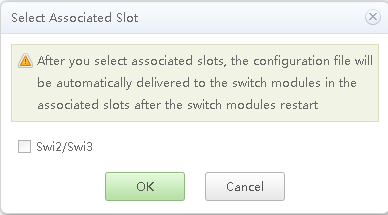
The Select Associated Slot dialog box is displayed, as shown in Figure 2.
NOTE: - Swi1 corresponds to the switch module in slot 1E.
- Swi2 corresponds to the switch module in slot 2X.
- Swi3 corresponds to the switch module in slot 3X.
- Swi4 corresponds to the switch module in slot 4E.
- Select the slot number to be associated with the profile, and click OK.
The selected slot number is displayed in the Associated Slot column.
NOTE: The compute node in the selected slot and the compute node to which the profile imported must be of the same type.
- Click
 in the Operation column.
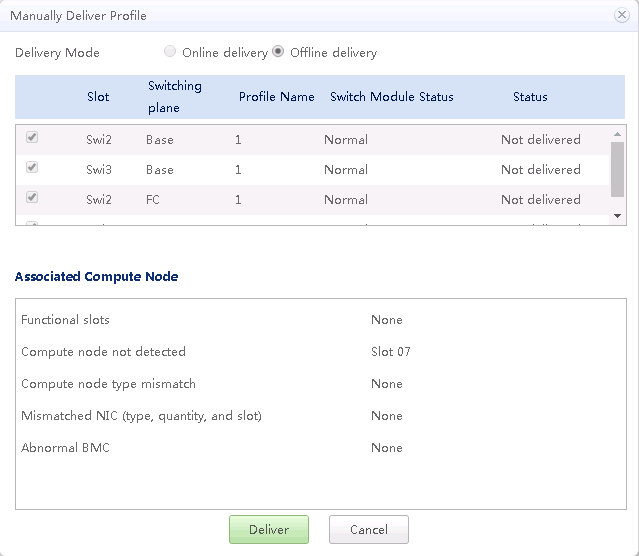
The Manually Deliver Profile dialog box is displayed, as shown in Figure 3.
Table 14 describes the parameters.
Table 14 Parameter descriptions Item
Description
Delivery Mode
- Offline delivery: Offline delivery to an Ethernet switching plane restarts the plane. Offline delivery to an FC switching plane overwrites the existing FC configurations.
- Online delivery: Online delivery to an Ethernet switching plane does not restart the plane. Offline delivery to an FC switching plane does not overwrite the existing FC configurations.
NOTE:The first delivery of new configurations must be offline.
Associated Compute Node
Shows compute node errors, including Compute node type mismatch, Mismatched NIC (type, quantity, and slot), and Abnormal BMC.
Table 15 lists the online delivery issues and solutions.
Table 15 Online delivery issues and solutions Online Delivery Issue
Solution
Incorrect slot for online delivery.
Close and re-open the delivery policy page.
Failed to run the online delivery command.
Try online delivery again. If the delivery still fails, contact xFusion technical support.
The SOL channel is in use.
Manually free up the SOL channel.
The password is empty.
Enter the password for logging in to the switch module through the serial port as prompted.
Incorrect login password.
Re-enter the password for logging in to the switch module through the serial port as prompted.
The switching system is busy.
- Try online delivery again after some time. If the problem persists, go to step 2.
- Log in to the command line interface (CLI) of the switching system through the serial port and check the switching system status. Based on the switching system status, choose to end the current operation or wait for it to finish. Log out of the switching system.
- Select a slot number and click Deliver to issue the profile to the switch module in the specified slot.
- In the profile list, click a slot number in the Associated Slot column. See Figure 1.
- Click Next.
- Click Finish. The Switch Configuration page is displayed.