Function
Configure independent chassis, a master chassis, and slave chassis to implement chassis management. To perform the configurations, log in to MM910 as the user of the chassis to be set to the master chassis first.
The chassis has the following states:
- Master Chassis: a management chassis in a chassis group, through which the slave chassis can be added or deleted. The master chassis can be set as the independent chassis. When the master chassis serves as the independent chassis, the chassis group is deleted and the slave chassis is disconnected.
- Slave Chassis: a managed chassis in the chassis group, which can be disconnected from the chassis group.
- Independent Chassis: a chassis that is not added in the chassis group and can be set as the master chassis or added as the slave chassis.
 NOTICE:
 When the master chassis is set to the slave chassis or the slave chassis is set to the independent chassis, the MAC, WWPN, WWNN, and UUID delivered from the original chassis will be deleted and the boards on the slave chassis will be reset. Exercise caution when performing this operation.
Setting the Master Chassis
- In the Chassis Management window, click Edit.
Select Master Chassis from the Chassis Status drop-down list and enter a value in Group Name. Table 1 lists the master chassis parameters.
Table 1 Master chassis parameters Parameter
Description
Chassis Status
Sets the current independent chassis to the master chassis.
Group Name
Specifies the chassis group name.
- The name contains 1 to 32 characters including letters, digits, and underscores (_).
- The group name can be set only when the independent chassis is set to the master chassis. Once the group name is set, it cannot be changed.
The chassis group can contain a maximum of one master chassis and three slave chassis.
- Click Save.
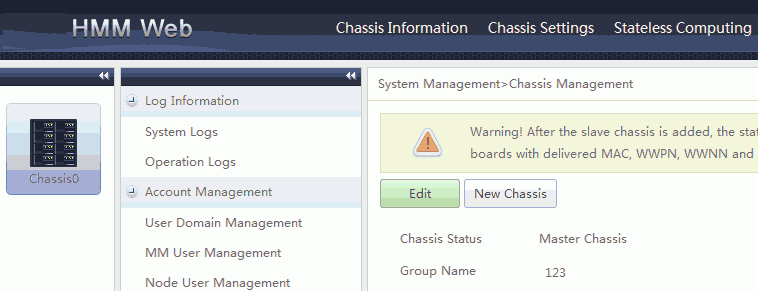
If the setting is successful, the Chassis0 icon is displayed in the left pane. See Figure 1.
Adding the Slave Chassis
- Click the master chassis icon in the left pane.
The master chassis information is displayed in the right pane.
- In the Chassis Management window, click New Chassis.
 NOTE:
NOTE: On the WebUI of the slave chassis to be added, choose System Management > System Settings > Security Policy and set Public Key Authentication to On. Perform the operation on the WebUI of the slave chassis to be added; otherwise, the slave chassis cannot be added successfully.
The New Chassis dialog box is displayed. Table 2 lists new chassis parameters.
Table 2 New chassis parameters Parameter
Description
IP Address
Specifies the floating IP address of the slave chassis.
Port
Specifies the number of a port for connecting to the slave chassis.
Only port 22 is supported.
Identification Information
Specifies the identification information for connecting to the slave chassis over SSH. If the slave chassis identification information changes during the connection, a message is displayed to inform the user.
User Name
Specifies the user name for connecting to the slave chassis. The user must be the MM910 user of the slave chassis and has the permission to perform all operations for the slave chassis.
Password
Specifies the password for logging in to the slave chassis.
Chassis Number
Specifies the chassis number. The value ranges from 1 to 3. 0 indicates the master chassis and 1 to 3 indicate the slave chassis.
- Enter the IP address of the slave chassis and click Search Chassis.
- In the displayed chassis list, select the chassis that you want to set to the slave chassis.
- Enter the user name, password, and chassis number.
- Click OK.
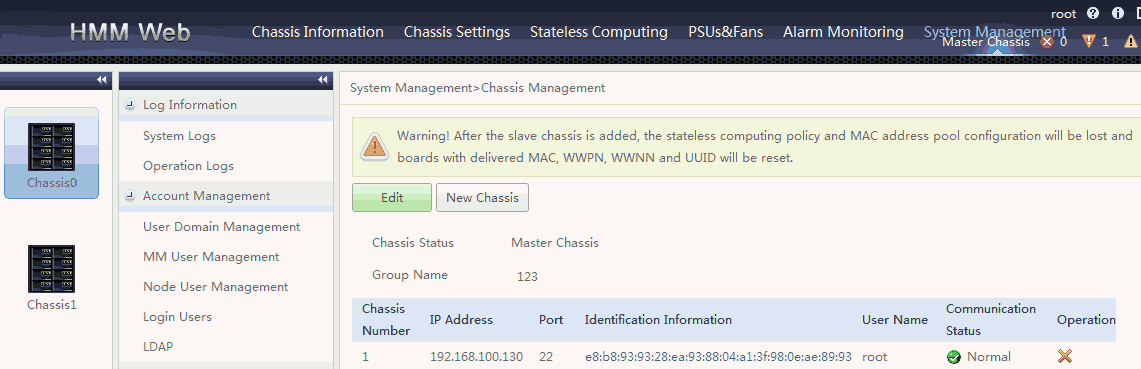
If the adding is successful, the slave chassis icon shown in Figure 2 is displayed in the left pane. Table 3 lists parameters after the chassis is added.
Table 3 Chassis management parameters Parameter
Description
Communication Status
Specifies the status of the communication between the current master chassis and the slave chassis.
 Normal: The communication is normal.
 Abnormal: The communication is abnormal.
 The identification information has changed: When a connection error occurs, the slave chassis identification information is changed, and the displayed identification information is refreshed.
NOTE:The Chassis Management window is automatically refreshed every 10 seconds to display the latest communication status.
Operation
Allows users to perform operations on a profile.
 : deletes the slave chassis.
 : reconnect to the slave chassis. This operation is available only when the Communication Status is The identification information has changed. Use this operation when the identification information of the slave chassis has changed.
Disconnecting the Slave Chassis
- Click the slave chassis icon in the left pane.
The slave chassis information is displayed in the right pane.
- In the Chassis Management window, click Disconnect the chassis.
The dialog box is displayed.
- Click OK to disconnect the chassis.
Setting an Independent Chassis
- Click the master chassis icon in the left pane.
The master chassis information is displayed in the right pane.
- In the Chassis Management window, click Edit.
Select Independent Chassis from the Chassis Status drop-down list.
- Click Save.